Resize, crop, remove backgrounds with local AI, watermark, compress, and convert. Combine ten operations, preview real output, and download your batch without uploading the originals.
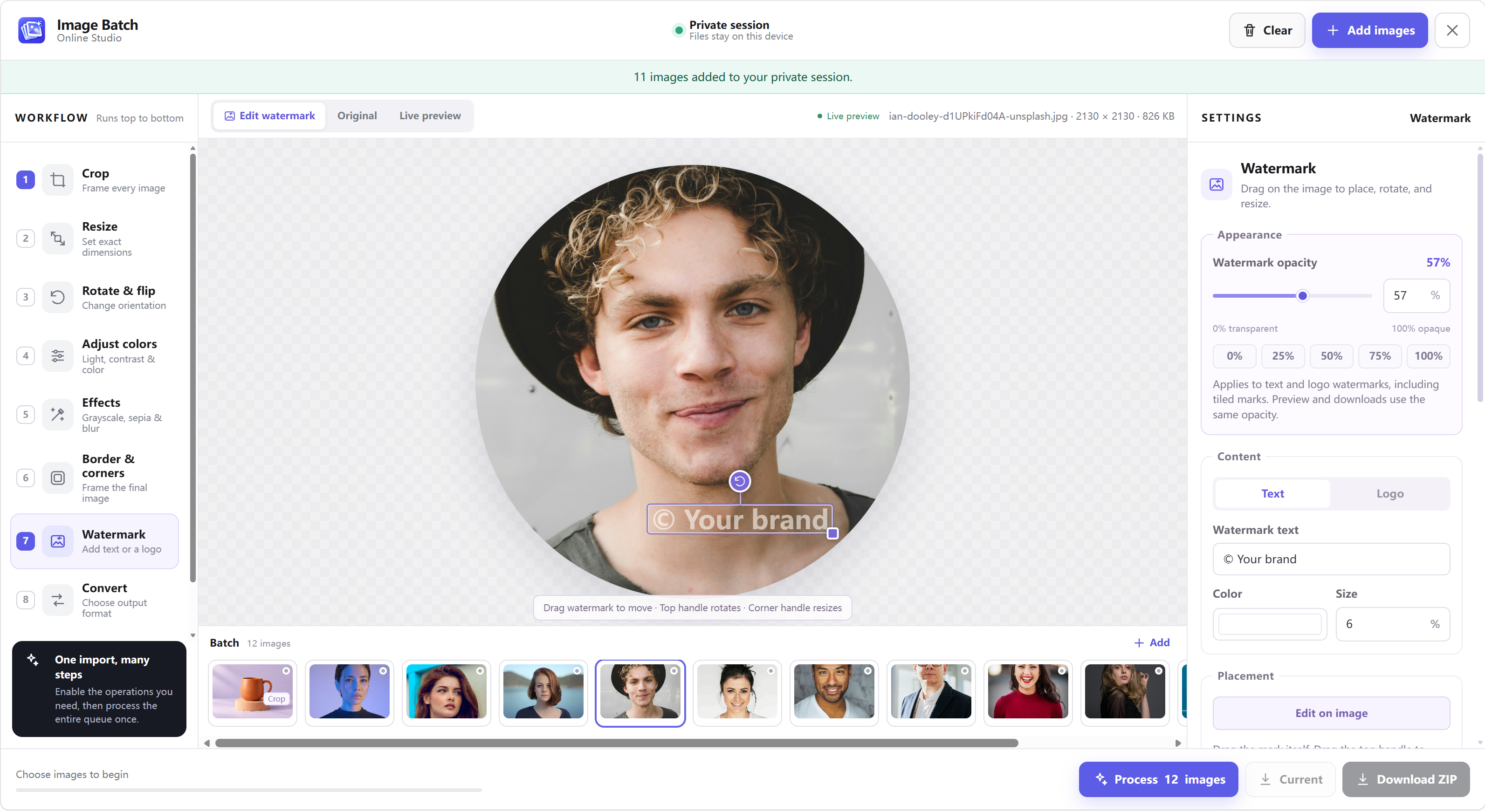
Place and rotate a text watermark directly on the image. The same opacity control also works with logos.
See actual output
Try the batch image tools on a sample.
This interactive example processes a sample locally and reports measured dimensions and bytes. Choose an operation, then open the sample in the full studio.
A real browser-processed example
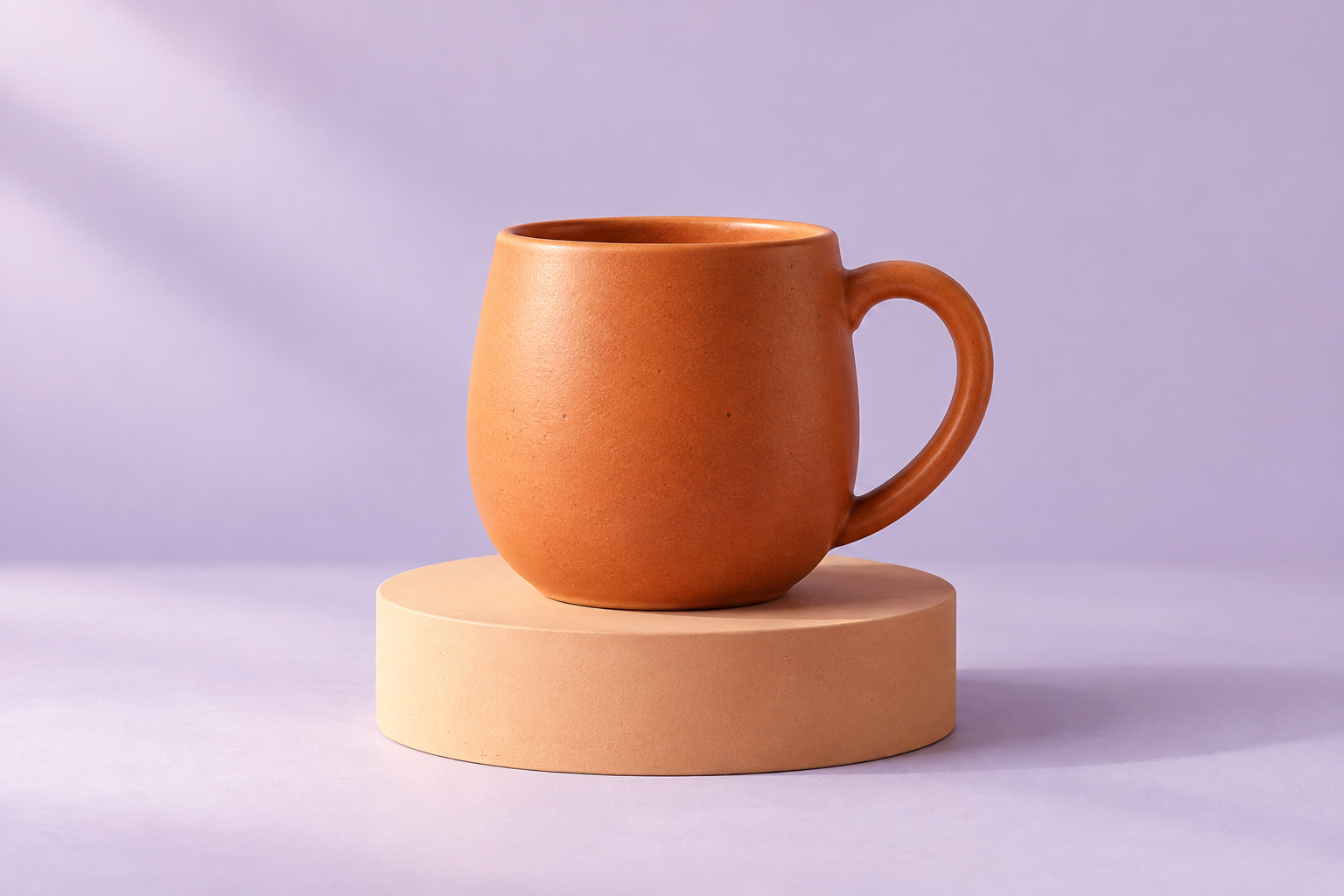
Original1536 × 1024 · PNG
Preparing sample…
ResultProcessed on your device
A connected batch workflow
Import once. Finish the entire set.
Enable the steps you need. They run in the studio’s displayed order: Crop → Resize → AI background → Rotate → Adjust → Effects → Border → Watermark → Convert → Compress. Later steps work on the pixels produced by earlier ones.
Only the selected photo is previewed while you edit. Process images applies the workflow to the queue; settings changes invalidate older exports so an outdated download is not mistaken for a fresh result.
1. Import your imagesChoose, drop, or paste supported files. Review the thumbnail queue and remove anything you do not need.
2. Set a consistent treatmentCombine operations and inspect real live output. Keep individual crop adjustments for images with different compositions.
3. Export a clean batchProcess once, save separate images or a ZIP, and use filename templates with original names and sequential numbers.
01
Remove batch image backgrounds with local AI
Create transparent cutouts or replace the background with a solid color using the lightweight U2NetP model. AI runs in a separate browser worker, with download and inference progress, so image contents never leave your device. Review the current image, then process the batch and download PNG, WebP, or a ZIP.
First use downloads the 4.6 MB model plus the AI engine. The model infers a 320 × 320 mask; output dimensions are preserved, but fine hair, glass, and low-contrast boundaries may need retouching. AI inputs are limited to 16 million pixels; use Resize first for larger sources. Edge cleanup reuses cached masks.
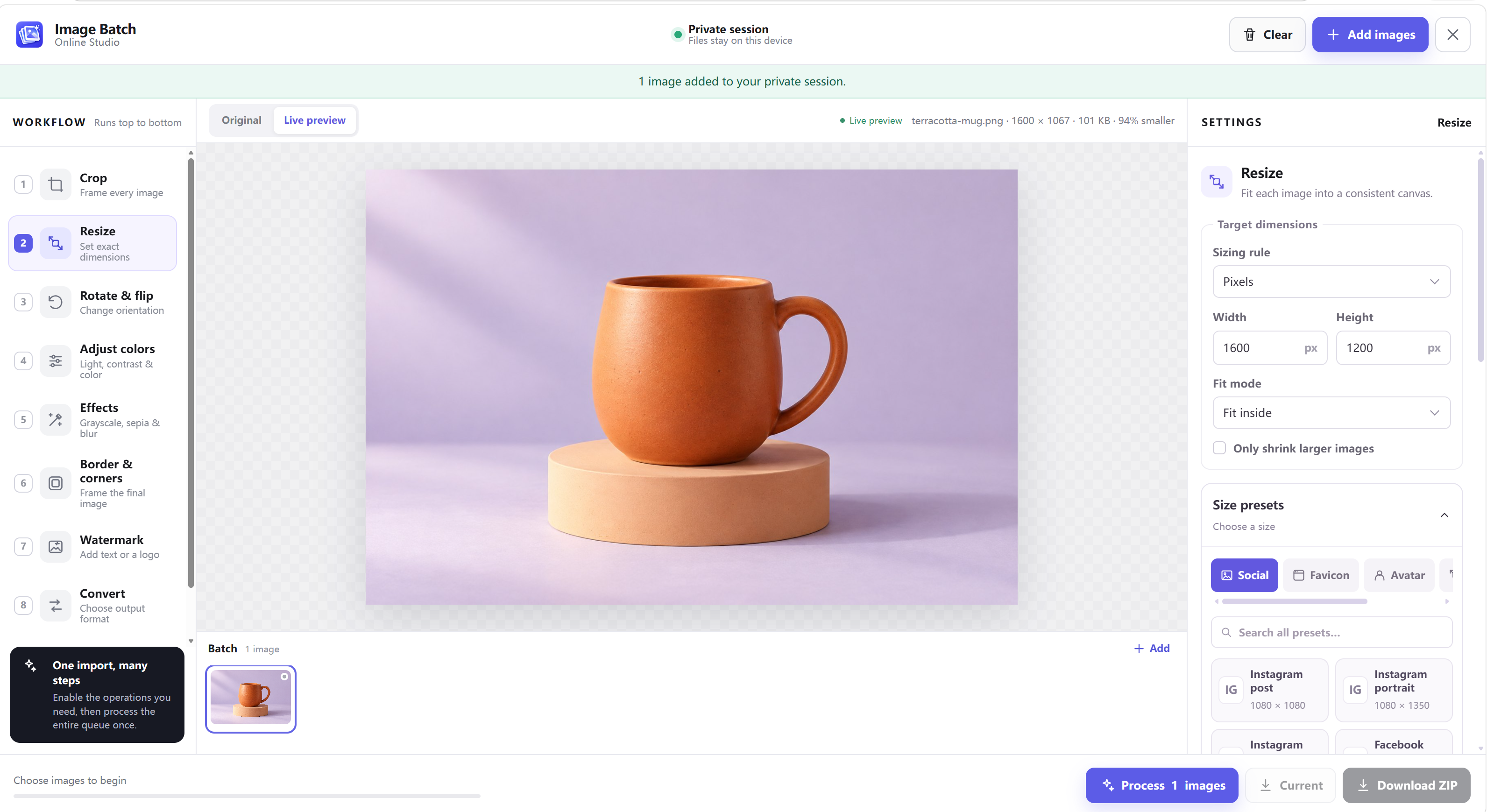
Resize a mixed set to exact pixels, a proportional boundary, or a percentage of each original. Choose from 46 searchable Social, Favicon, Avatar, Screen, and Print presets. Fill & center crop creates matching dimensions; Fit inside keeps the whole composition; Stretch changes proportions.
Turn on Only shrink when small originals must stay small. Print presets provide pixel dimensions, not embedded DPI metadata.
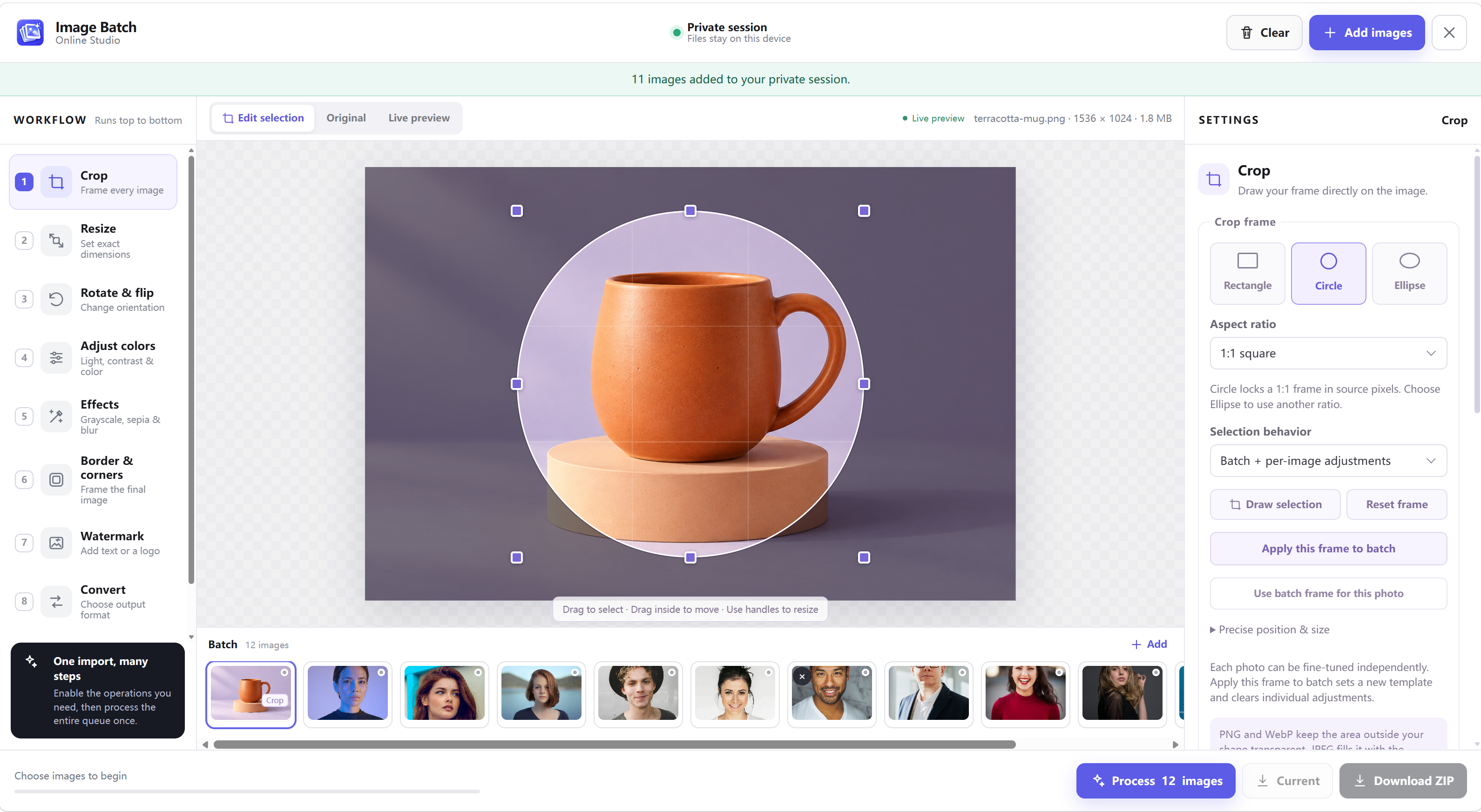
Draw rectangular, circular, or elliptical selections directly on the image. Drag the frame, resize with eight handles, or enter precise percentages. Lock a photo, square, widescreen, or portrait aspect ratio; circles use a true 1:1 pixel frame.
Set a batch template, then fine-tune each photo independently. Apply this frame to batch resets the template; subsequent adjustments do not move the other photos.
Drag a watermark into position, rotate it with the top handle, and resize from the corner. Text and transparent logos share a 0–100% opacity control, with a slider, exact percentage, and quick presets. Position and size scale relative to each output image.
The editable image includes earlier workflow steps, so placement follows your crop and resize. Use tiled marks for proof sets, or precise coordinates and nine placement anchors when you need a repeatable position.
Set JPEG or WebP quality, search for a target KB limit, and optionally reduce the maximum long edge. PNG uses its own lossless or 32–256-color palette encoder rather than a JPEG quality slider. The preview reports actual encoded bytes and savings.
A target can reduce dimensions and may still be missed. Keep-original mode can preserve a smaller source, including its metadata; use re-encoding when metadata removal matters.
Export real JPEG, PNG, WebP, BMP, TIFF, or ICO files with matching MIME types and extensions. Import JPEG, PNG, WebP, BMP, ICO, HEIC/HEIF, and browser-decodable AVIF. HEIC is decoded locally to its first contained still image.
TIFF is output-only and uncompressed. BMP/TIFF exports are limited to 16 million pixels; ICO fits within 256 × 256. There is no HEIC or AVIF export or animation preservation. Conversion alone does not remove backgrounds; enable the separate AI step.
Rotate by 90°, 180°, or 270° and mirror horizontally or vertically. These transforms are written into the actual output pixels. A separate workflow step makes orientation changes easy to combine with cropping and resizing.
Review portrait and landscape sources separately. A quarter-turn swaps output width and height.
Use percentage controls for brightness, contrast, and saturation. A neutral 100% preserves the starting treatment, while one set of changes can bring a collection into a more consistent visual range.
Adjustments apply to the whole image. Check both the lightest and darkest originals before exporting the complete batch.
Choose grayscale, sepia, or adjustable full-image blur. The effects change exported pixels rather than adding a browser-only display filter, so the downloaded images carry the treatment you selected.
Blur is not a selective privacy-redaction tool. Always inspect the encoded result before sharing sensitive content.
Choose an outer border width and color, or round the corners. Borders expand the output dimensions, and PNG or WebP can preserve transparent areas around softened corners.
JPEG and 24-bit BMP fill transparent areas with the selected background. Changing format does not remove an existing photographic background.
Every download is a real encoded file, not an extension rename. Choose your format, review dimensions and bytes, and optionally name outputs with {name}, {index}, and {tool}.
Import up to 50 files, enable the operations you need, review the selected image, and process the queue once. Download individual results or a ZIP. Originals stay unchanged.
Can I adjust a single photo after applying a batch crop?
Yes. Batch + per-image adjustments is the default. Apply one frame to the batch, then select a thumbnail and refine that photo without moving other frames.
Are image files uploaded?
No. Decoding, editing, format encoding, and ZIP packaging run in the current browser tab. Files are held in memory, not a cloud image library.
Which output preserves transparent shapes?
PNG and WebP preserve alpha, while JPEG and 24-bit BMP use an opaque background. TIFF includes RGBA pixels, but alpha handling varies in other programs.
What are the browser limits?
A session supports 50 files, up to 40 MB each. Canvas dimensions are limited to 16,384 pixels per edge and 80 million pixels; device memory can impose a lower practical limit. BMP/TIFF export supports up to 16 million pixels.
Make your next image batch consistent.
Start with a focused tool or combine edits in the online studio.